The "Every Method" editing demo allows you to preview 300 editing, analysis and effects methods, and generate sample code.
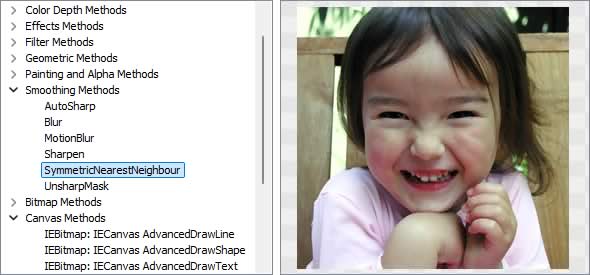
Image Editing Methods
◼Analysis Methods◼Color Adjustment Methods
◼Color Depth Methods
◼Detection Methods
◼Effects Methods
◼Filter Methods
◼Geometric Methods
◼Painting and Alpha Methods
◼Smoothing Methods
◼Other Methods
◼Selection Methods
◼Interactive Tools
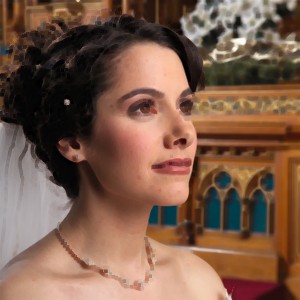
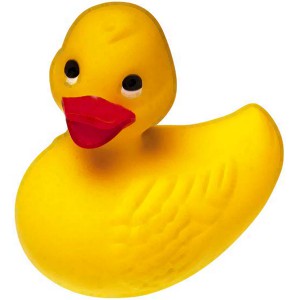
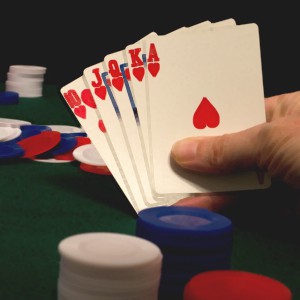
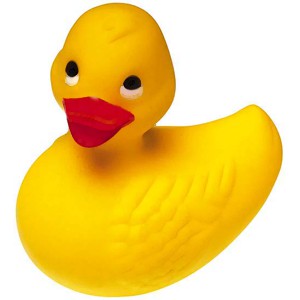
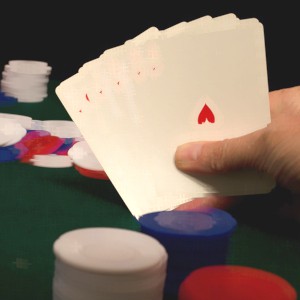
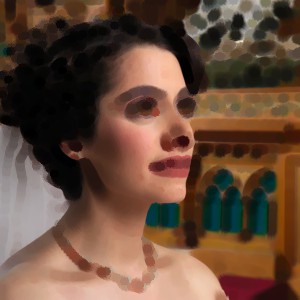
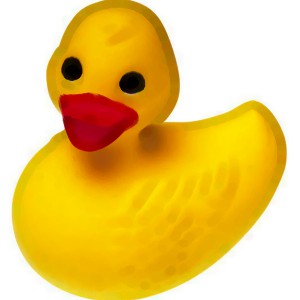
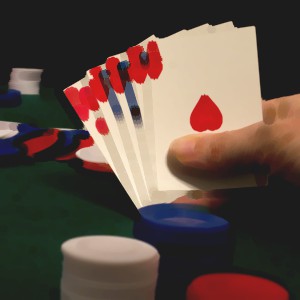
Test Images
ImageEnView1.IO.LoadFromFile( 'D:\ImageTest1.jpg' );
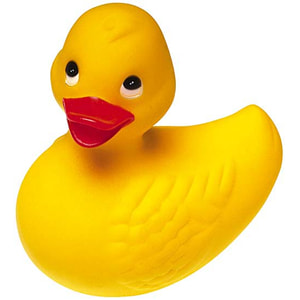
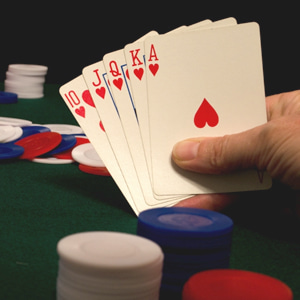
ApplyFilterPreset
// Apply a Blur filter to the imageImageEnView1.Proc.ApplyFilterPreset( fpBlur );

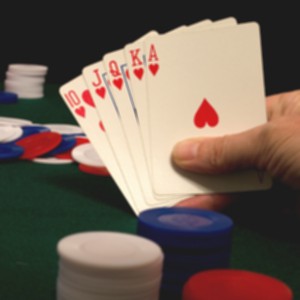
// Apply an Edge filter to the image
ImageEnView1.Proc.ApplyFilterPreset( fpEdge );
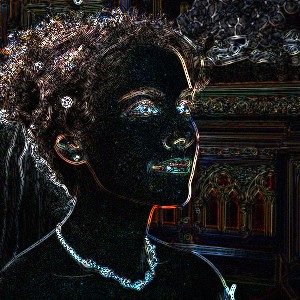
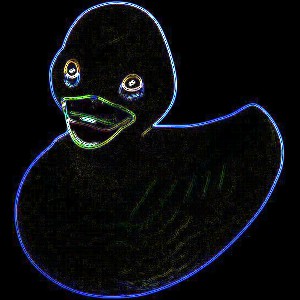
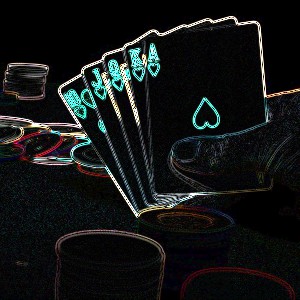
// Apply an Emboss filter to the image
ImageEnView1.Proc.ApplyFilterPreset( fpEmboss );

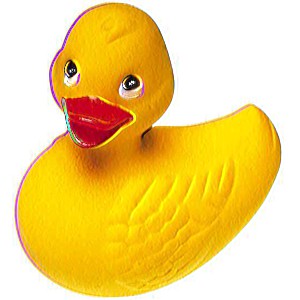
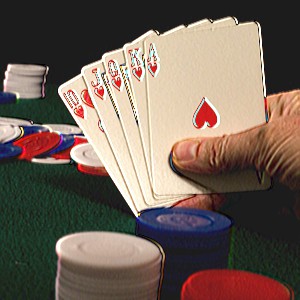
// Apply a High Pass filter to the image
ImageEnView1.Proc.ApplyFilterPreset( fpHighPass1 );
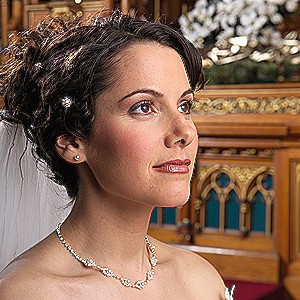
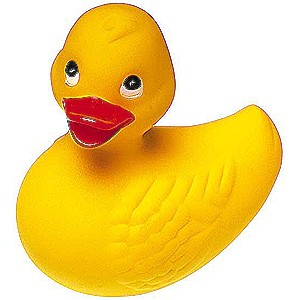
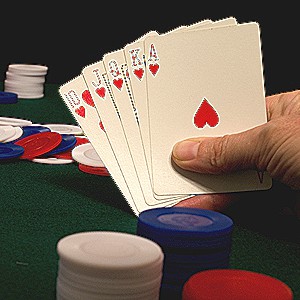
// Apply a High Pass filter to the image
ImageEnView1.Proc.ApplyFilterPreset( fpHighPass2 );
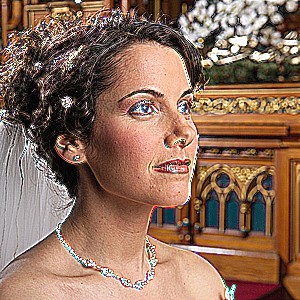
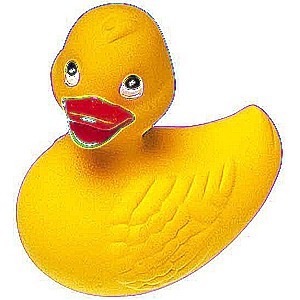
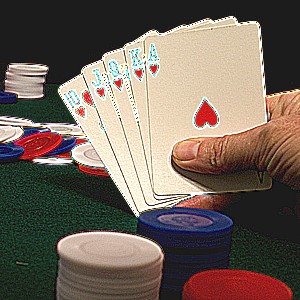
// Apply a High Pass filter to the image
ImageEnView1.Proc.ApplyFilterPreset( fpHighPass3 );
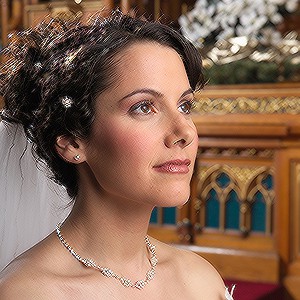
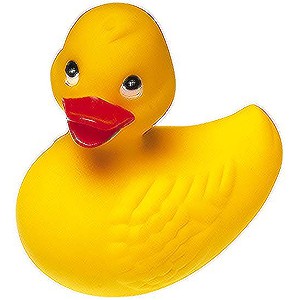
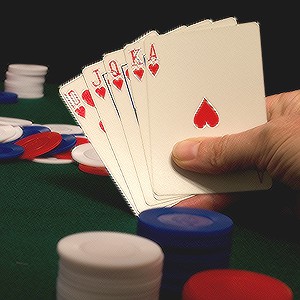
// Apply a Low Pass filter to the image
ImageEnView1.Proc.ApplyFilterPreset( fpLowPass1 );

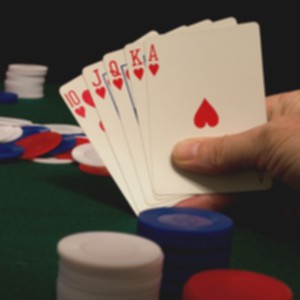
// Apply a Low Pass filter to the image
ImageEnView1.Proc.ApplyFilterPreset( fpLowPass2 );

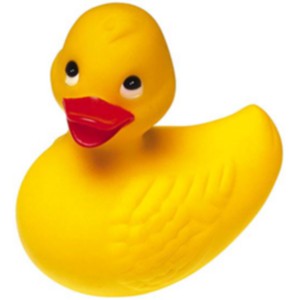
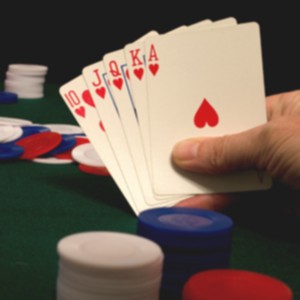
ApplyFilter
// Apply a sharpening filterConst
Sharpening_Filter: TGraphFilter = ( Values: (( 0, -1, 0 ),
( -1, 5, -1 ),
( 0, -1, 0 ));
Divisor: 1 );
begin
ImageEnView1.Proc.ApplyFilter( Sharpening_Filter );
end;
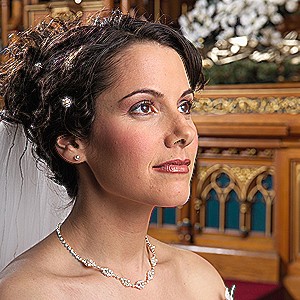
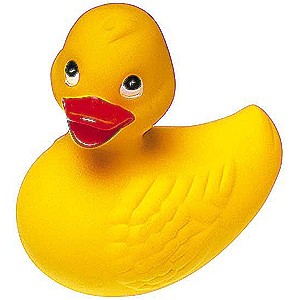
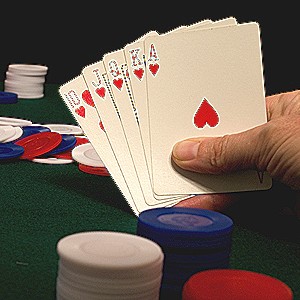
Closing
// Perform a dilation followed by an erosionImageEnView1.Proc.Closing( 1 );

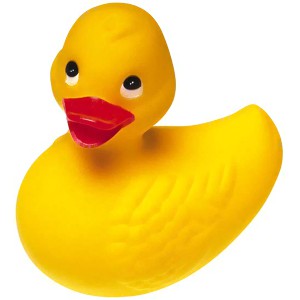
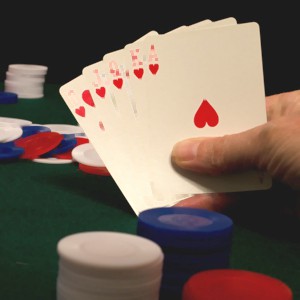
Convolve
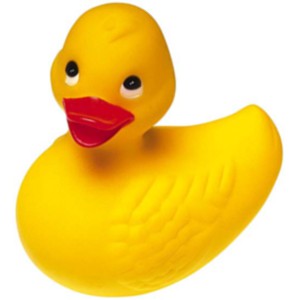
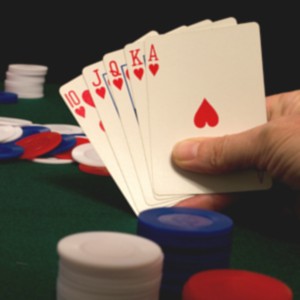
// Convolve the specified kernel over the selection (3x3 blur)ImageEnView1.Proc.Convolve( [0.0, 1.0, 0.0,
1.0, 1.0, 1.0,
0.0, 1.0, 0.0],
3, 3, 1/5);

Maximum
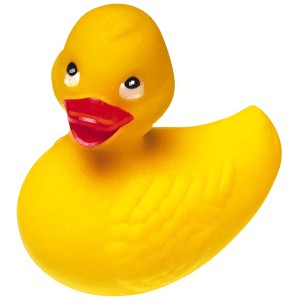
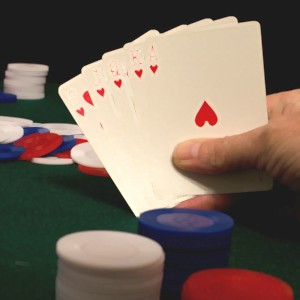
// Set each pixel to the maximum value of all pixel values in the neighborhoodImageEnView1.Proc.Maximum( 1 );

MedianFilter
// Perform fast median filteringImageEnView1.Proc.MedianFilter();

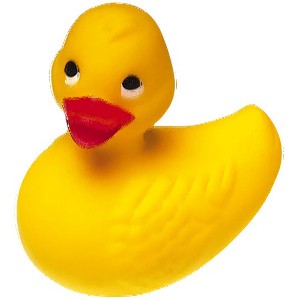
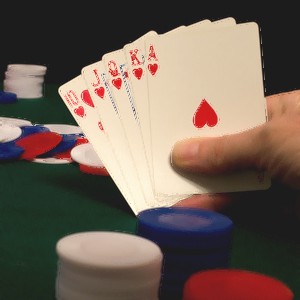
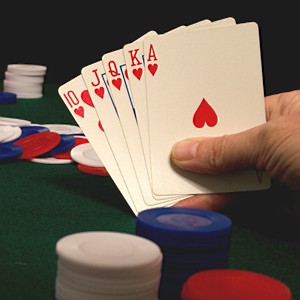
// Perform fast median filtering using high pass sharpening
ImageEnView1.Proc.MedianFilter( 5, 5, 50, 50, 1, 50, mfSharpen );
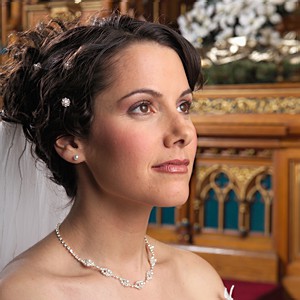
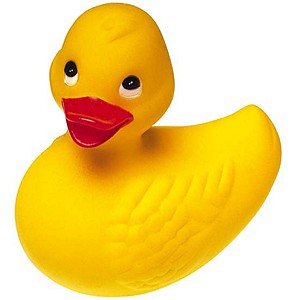
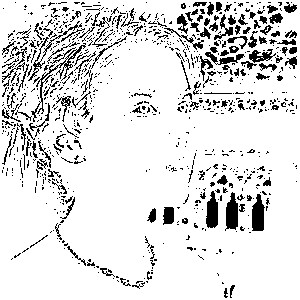
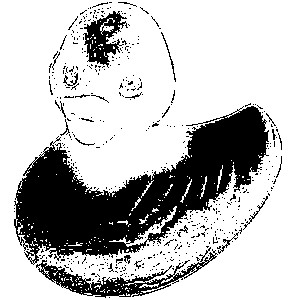
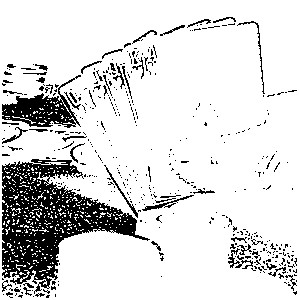
// Perform fast median filtering using edge extraction
ImageEnView1.Proc.MedianFilter( 5, 5, 50, 50, 1, 50, mfEdgeExtract );
Minimum
// Set each pixel to the minimum value of all pixel values in the neighborhoodImageEnView1.Proc.Minimum( 1 );
Opening
// Perform an erosion followed by a dilationImageEnView1.Proc.Opening( 1 );

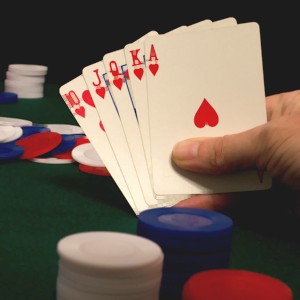
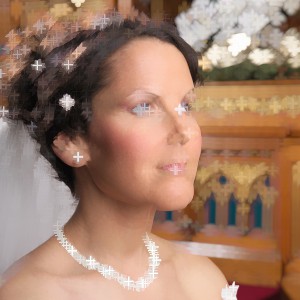
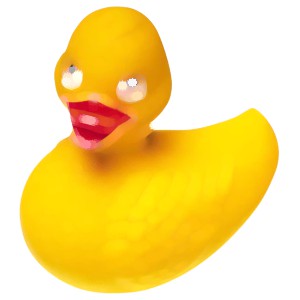
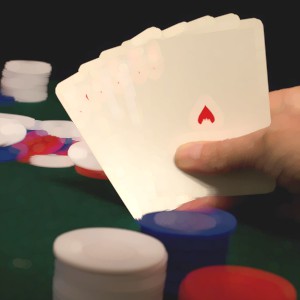
dilate (IEVision)
// Perform Dilation (Rectangle)ImageEnView1.IEBitmap.GetIEVisionImage().dilate( ievMORPH_RECT, 4 );
ImageEnView1.Update();
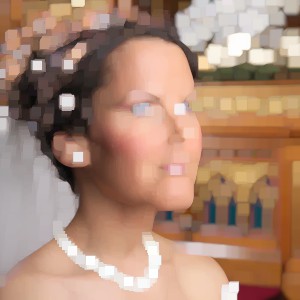
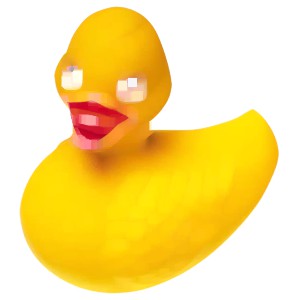
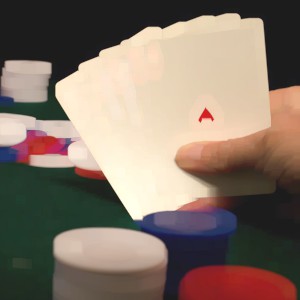
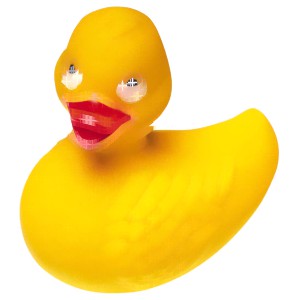
// Perform Dilation (Cross)
ImageEnView1.IEBitmap.GetIEVisionImage().dilate( ievMORPH_CROSS, 4 );
ImageEnView1.Update();
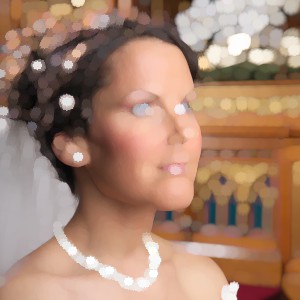
// Perform Dilation (Ellipse)
ImageEnView1.IEBitmap.GetIEVisionImage().dilate( ievMORPH_ELLIPSE, 4 );
ImageEnView1.Update();
erode (IEVision)
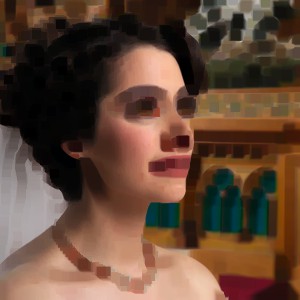
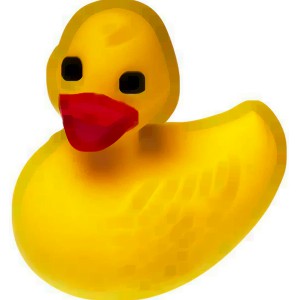
// Perform Erosion (Rectangle)ImageEnView1.IEBitmap.GetIEVisionImage().erode( ievMORPH_RECT, 4 );
ImageEnView1.Update();
// Perform Erosion (Cross)
ImageEnView1.IEBitmap.GetIEVisionImage().erode( ievMORPH_CROSS, 4 );
ImageEnView1.Update();
// Perform Erosion (Ellipse)
ImageEnView1.IEBitmap.GetIEVisionImage().erode( ievMORPH_ELLIPSE, 4 );
ImageEnView1.Update();
See Also
◼Analysis Methods◼Color Adjustment Methods
◼Color Depth Methods
◼Detection Methods
◼Effects Methods
◼Filter Methods
◼Geometric Methods
◼Painting and Alpha Methods
◼Smoothing Methods
◼Other Methods
◼Selection Methods
◼Interactive Tools