The "Every Method" editing demo allows you to preview 300 editing, analysis and effects methods, and generate sample code.
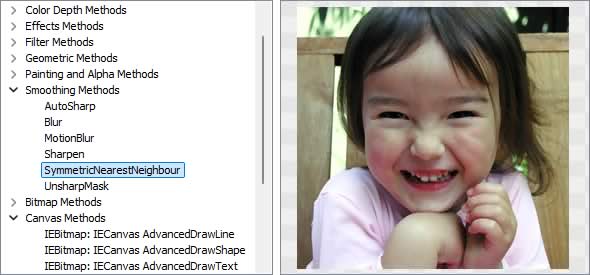
Image Editing Methods
◼Analysis Methods◼Color Adjustment Methods
◼Color Depth Methods
◼Detection Methods
◼Effects Methods
◼Filter Methods
◼Geometric Methods
◼Painting and Alpha Methods
◼Smoothing Methods
◼Other Methods
◼Selection Methods
◼Interactive Tools
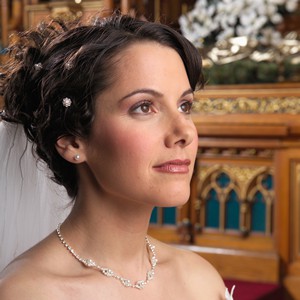
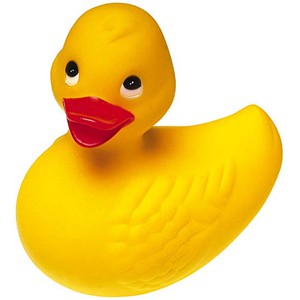
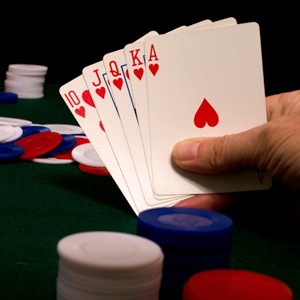
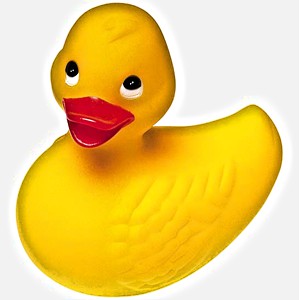
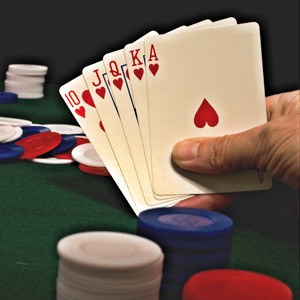
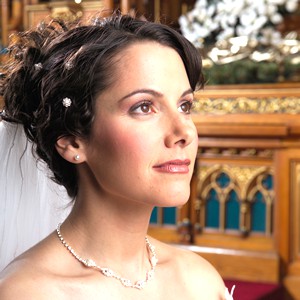
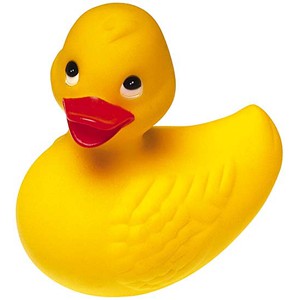
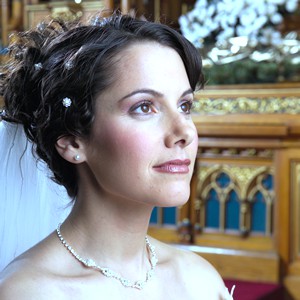
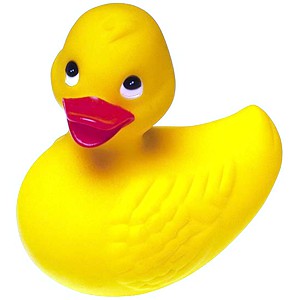
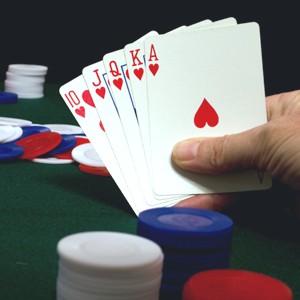
Test Images
ImageEnView1.IO.LoadFromFile( 'D:\ImageTest1.jpg' );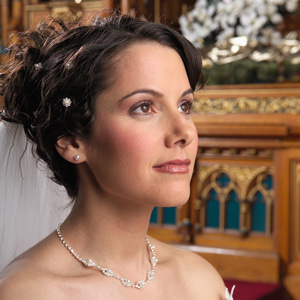
AdjustGainOffset
// Adjust image luminosity by stretching colors to the maximum allowed valueImageEnView1.Proc.AdjustGainOffset();
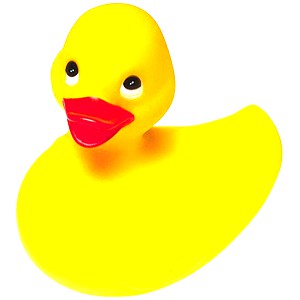
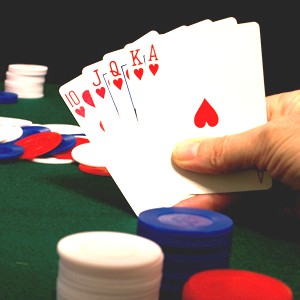
AdjustBrightnessContrastSaturation
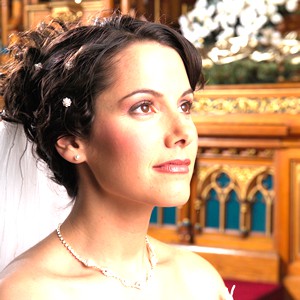
// Enhance brightness, contrast and color saturationImageEnView1.Proc.AdjustBrightnessContrastSaturation( 50, 10, 10 );
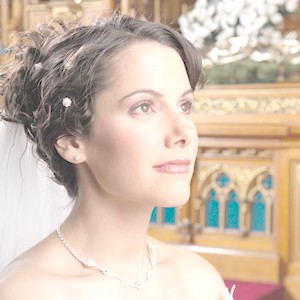
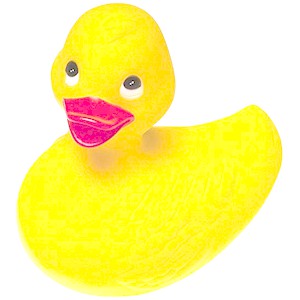
AdjustLevels
// Shift the midpoint of the image to brighten itImageEnView1.Proc.AdjustLevels( 0, 102, 201, 0, 255 );
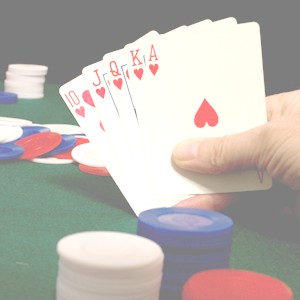
AdjustLumSatHistogram
// Increase the Saturation and LuminanceImageEnView1.Proc.AdjustLumSatHistogram( 0.25, 0.25 );
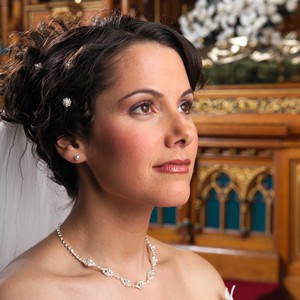
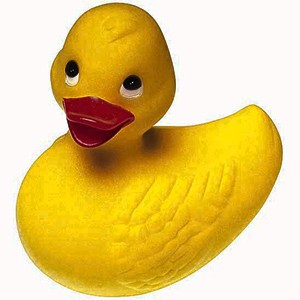
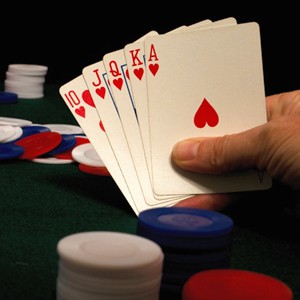
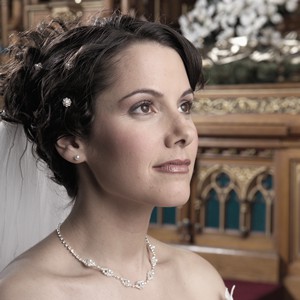
AdjustSaturation
// Decrease the saturation (make image more gray).ImageEnView1.Proc.AdjustSaturation( -50 );
AdjustTemperature
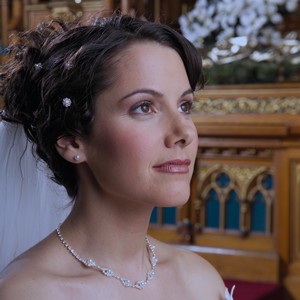
// Adjust the image temperatureImageEnView1.Proc.AdjustTemperature( 13000 );
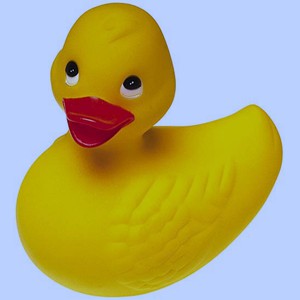
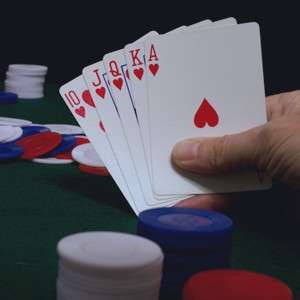
AdjustTint
// Adjust the color tint by 60 deg.ImageEnView1.Proc.AdjustTint( 60 );
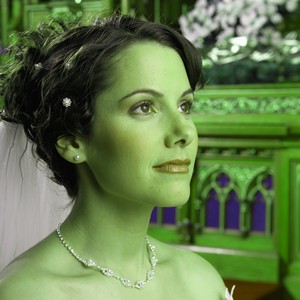
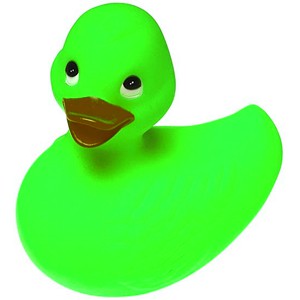
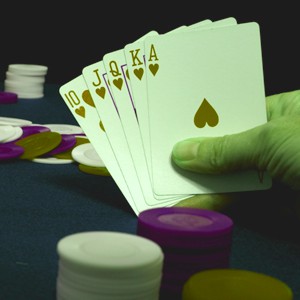
ApplyCubeLUT
// Apply a "Cinematic" LUT to the imageImageEnView1.Proc.ApplyCubeLUT( 'D:\cinematic.cube' );
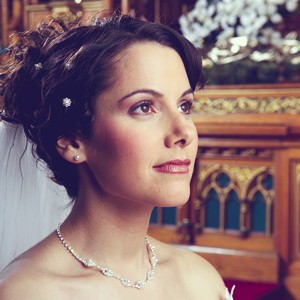
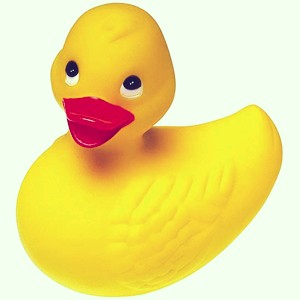
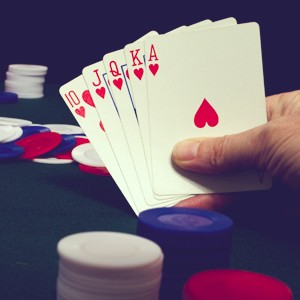
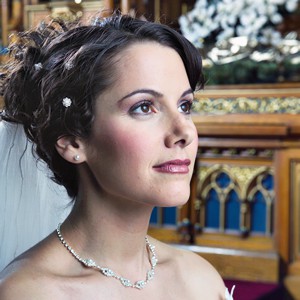
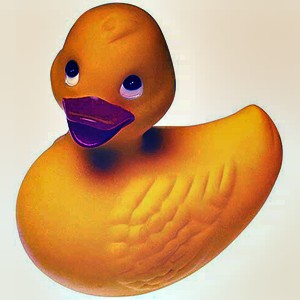
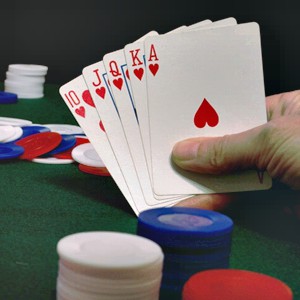
AutoImageEnhance1
// Improve the contrast and colors in the imageImageEnView1.Proc.AutoImageEnhance1();
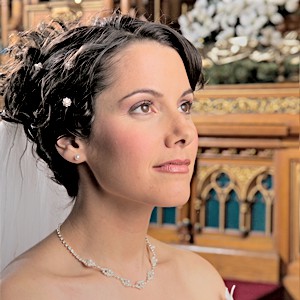
AutoImageEnhance2
// Use a "Retinex" algorithm to simulate how humans see the worldImageEnView1.Proc.AutoImageEnhance2();
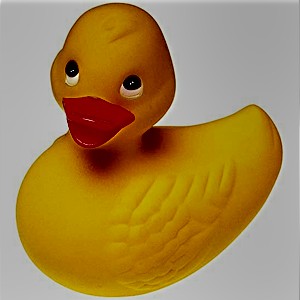
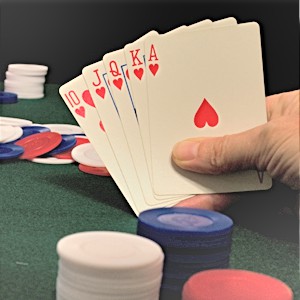
AutoImageEnhance3
// Enhance luminosity by applying a local adaptation tone mapping algorithmImageEnView1.Proc.AutoImageEnhance3();
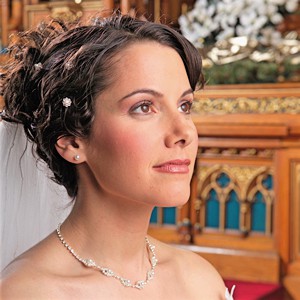
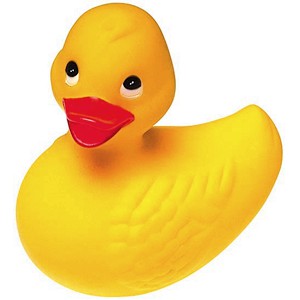
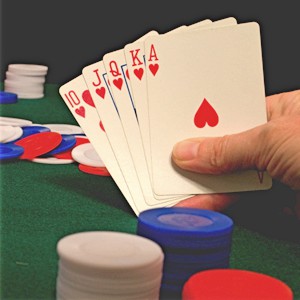
Colorize
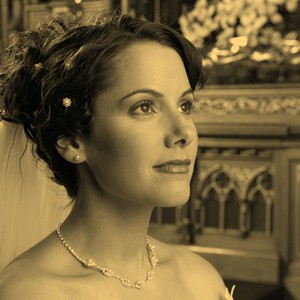
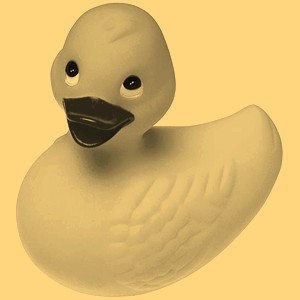
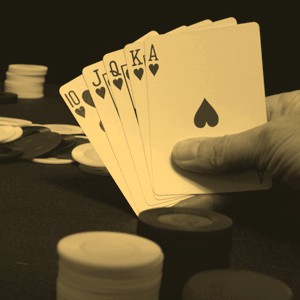
// Colorize the image with a sepia lookImageEnView1.Proc.Colorize( 40, 50, 1.1 );
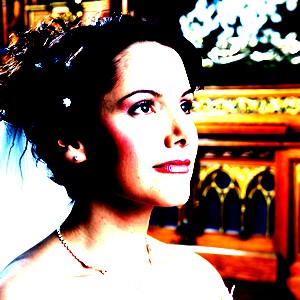
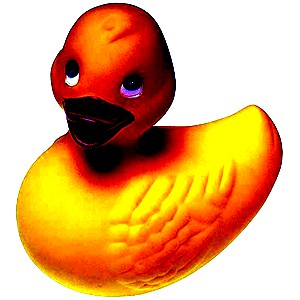
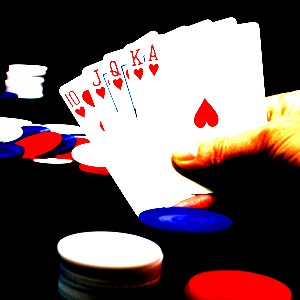
Contrast
// Increase the contrastImageEnView1.Proc.Contrast( 50 );
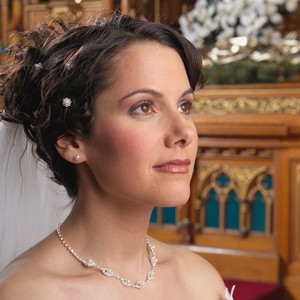
Contrast2
// Reduce the contrast (alternative method)ImageEnView1.Proc.Contrast2( -0.3 );
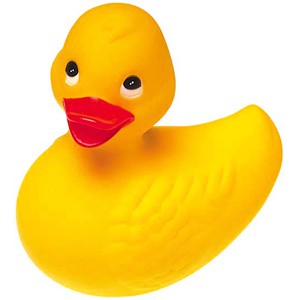
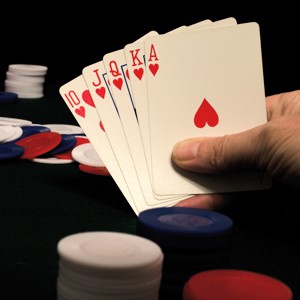
Contrast3
// Apply Contrast of +20 to all RGB values around the default Midpoint valueImageEnView1.Proc.Contrast3( 20, 0, True, True, True );
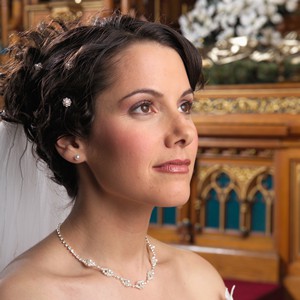
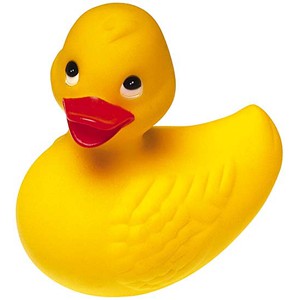
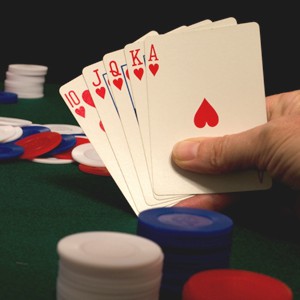
ConvertBitmap
// Apply colors from ICC file to bitmapImageEnView1.IO.Params.InputICCProfile.LoadFromFile( 'C:\VibranceMetallic_8400.icc' );
ImageEnView1.IO.Params.InputICCProfile.ConvertBitmap( ImageEnView1.IEBitmap );
ImageEnView1.Update(); // Show changes in our viewer

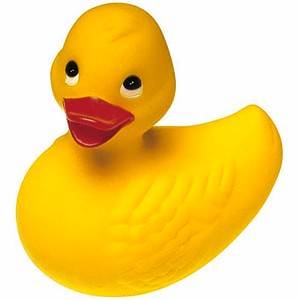
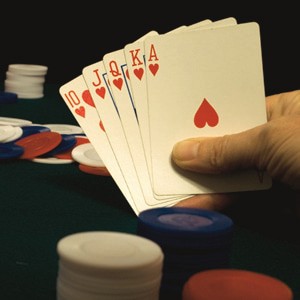
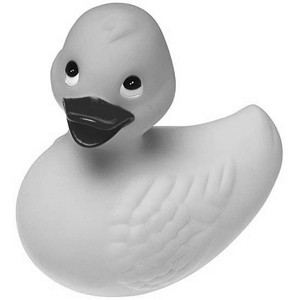
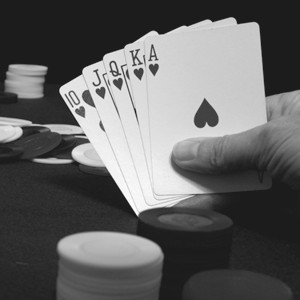
ConvertToGray
// Convert to gray levelsImageEnView1.Proc.ConvertToGray();
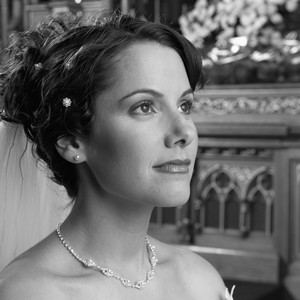
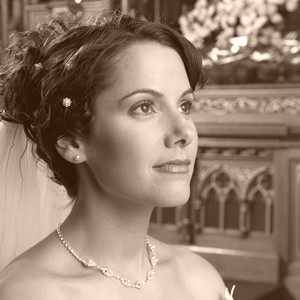
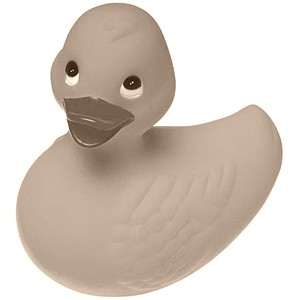
ConvertToSepia
// Apply a sepia effect to the imageImageEnView1.Proc.ConvertToSepia();
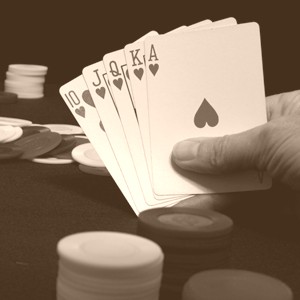
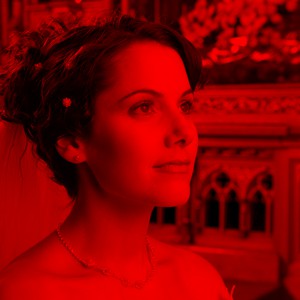
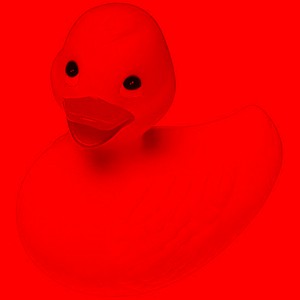
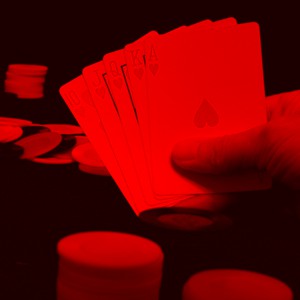
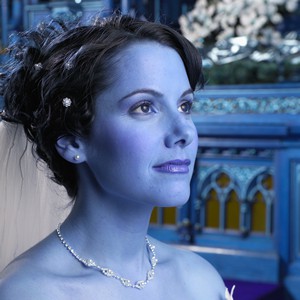
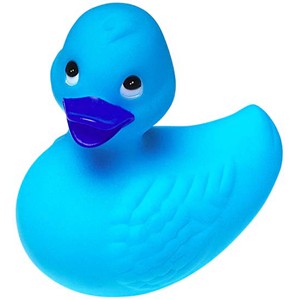
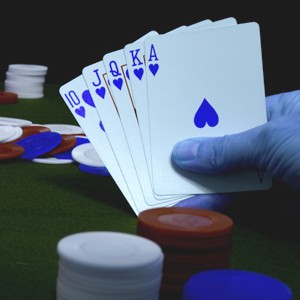
DisposeChannels
// Set Blue and Green channels to 0, leaving only RedImageEnView1.Proc.DisposeChannels( '00R' );
// Invert the Red and Blue channels
ImageEnView1.Proc.DisposeChannels( 'RGB' );
GammaCorrect
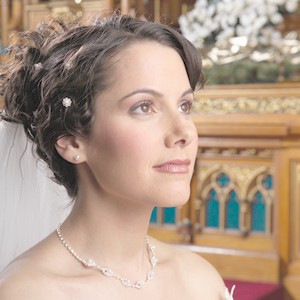
// Apply gamma correction over all channels (RGB)ImageEnView1.Proc.GammaCorrect( 2, [iecRed, iecGreen, iecBlue] );
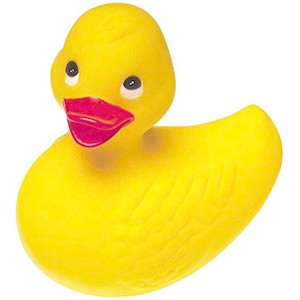
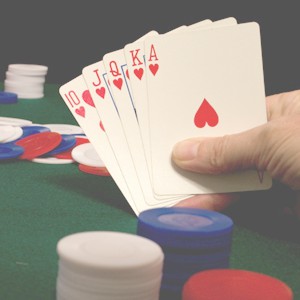
HistAutoEqualize
// Equalizes the color histogram of the selected regionImageEnView1.Proc.HistAutoEqualize();
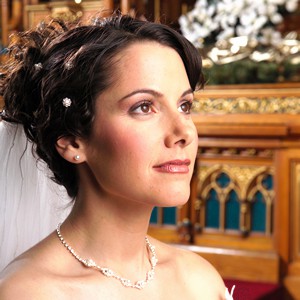
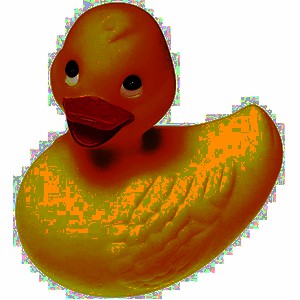
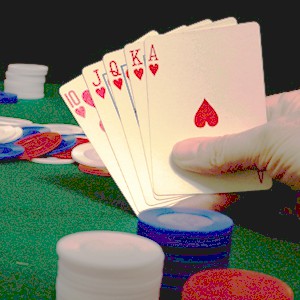
HistEqualize
// Compress the color histogramImageEnView1.Proc.HistEqualize( CreateRGB(50, 50, 50), CreateRGB(150, 150, 150) );
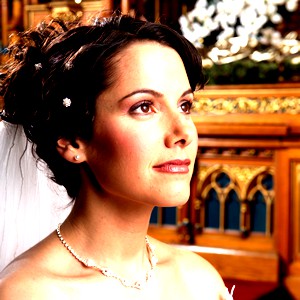
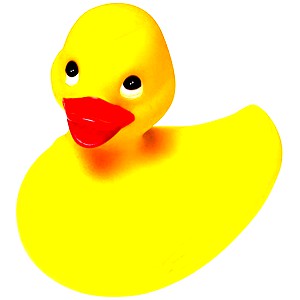
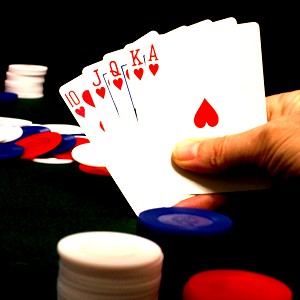
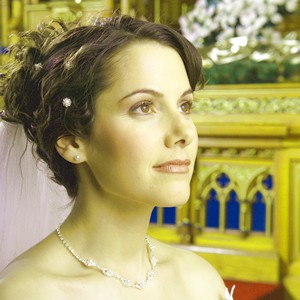
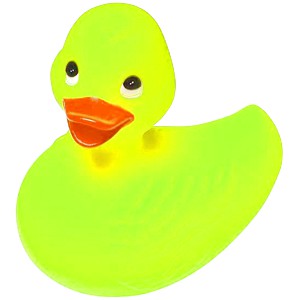
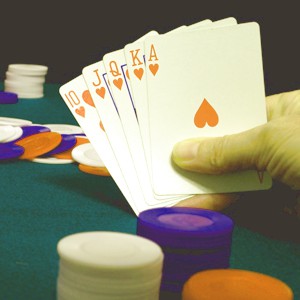
HSLvar
// Change the Hue, Saturation and LuminosityImageEnView1.Proc.HSLvar( 30, 10, 10 );
HSVvar
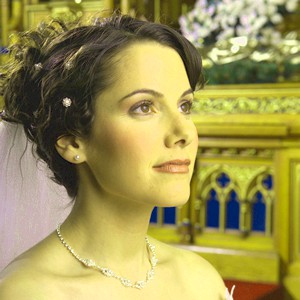
// Change the Hue, Saturation and ValueImageEnView1.Proc.HSVvar( 30, 10, 10 );
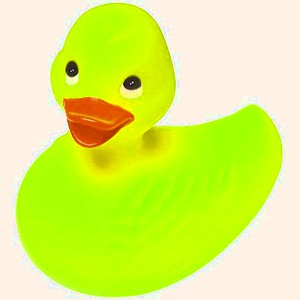
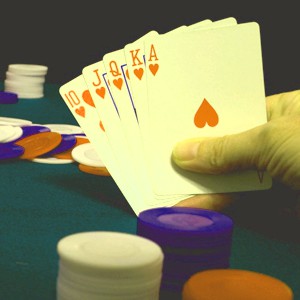
IntensityRGBAll
// Adjust the RGB channelImageEnView1.Proc.IntensityRGBAll( 5, 10, 15 );
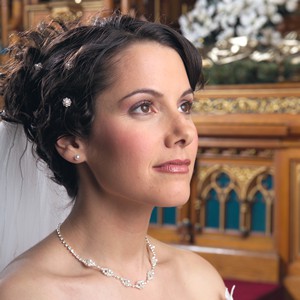
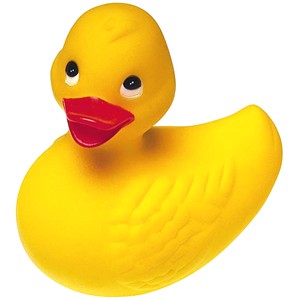
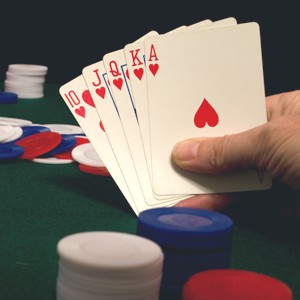
Intensity
// Apply an Intensity gradient peaking at +40 to all RGB values between 80 and 255ImageEnView1.Proc.Intensity( 80, 255, 40, False, True, True, True );
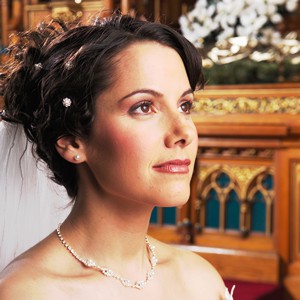
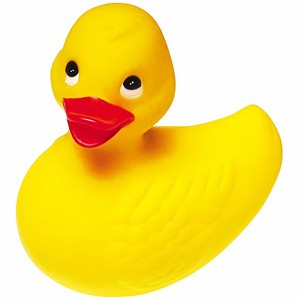
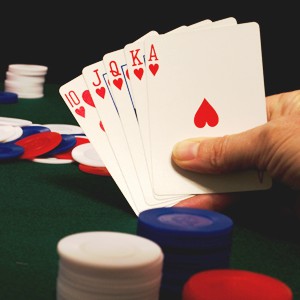
MatchHSVRange
// Make any bluish colors in the image absolutely blueImageEnView1.Proc.MatchHSVRange( 170, 260, 20, 99, 0, 99, True, CreateRGB( 0, 0, 255 ), False, CreateRGB( 255, 255, 255 ));
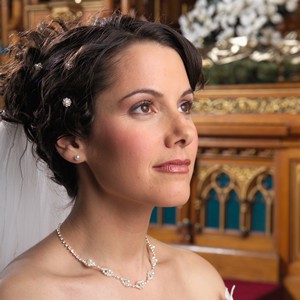
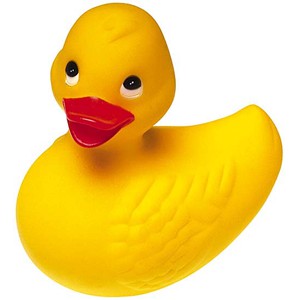
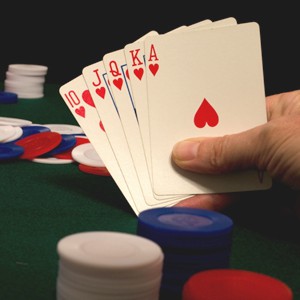
Negative
// Invert the image colorsImageEnView1.Proc.Negative();
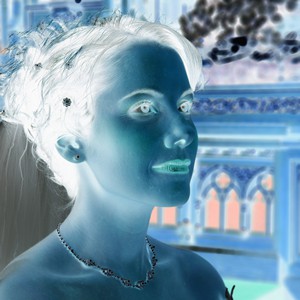
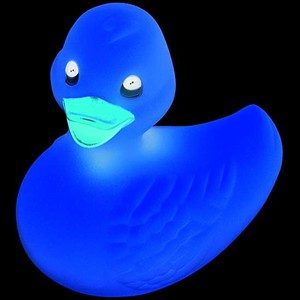
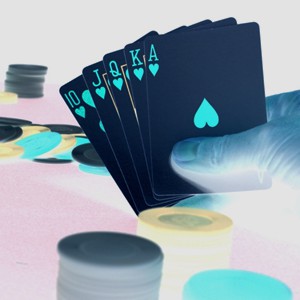
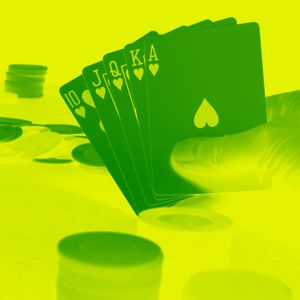
MapGrayToColor
// Apply a gradient palette to imagecolorMap := GenerateGradientPalette( clYellow, clGreen, 256 );
ImageEnView1.Proc.MapGrayToColor(colorMap);
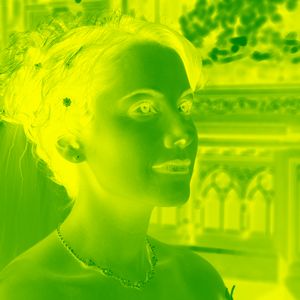
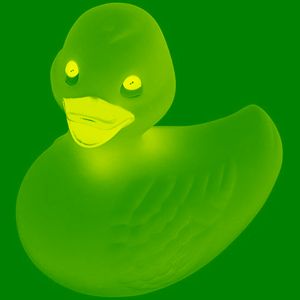
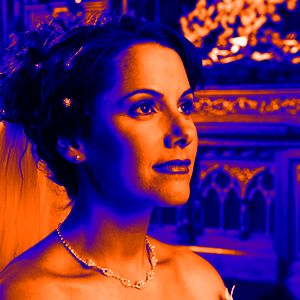
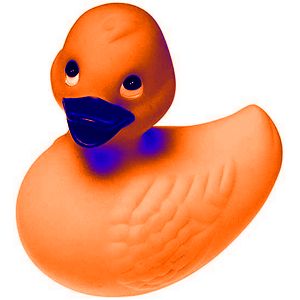
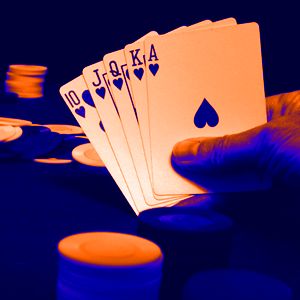
// Apply HotMetalBlue palette to image
colorMap := GenerateDicomColorPalette( iectHotMetalBlue );
ImageEnView1.Proc.MapGrayToColor(colorMap);
SetFromRGBChannels
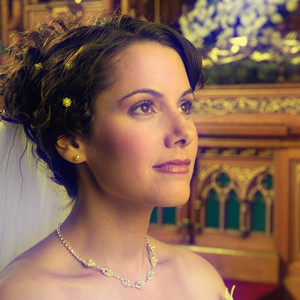
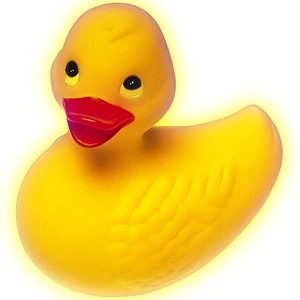
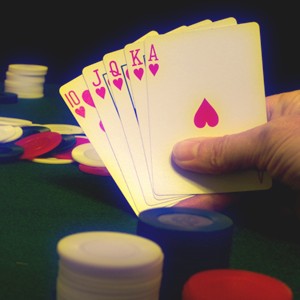
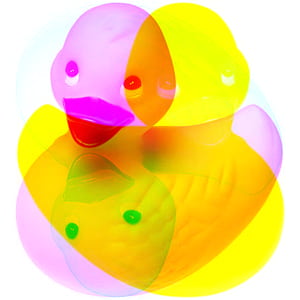
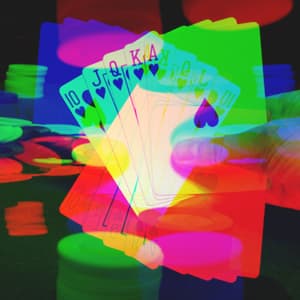
// Apply blurring to the blue color channel (ensure all bmps are created and freed)ImageEnView1.Proc.GetRGBChannel( bmpR, bmpG, bmpB );
bmpB.Proc.Blur( 10 );
ImageEnView1.Proc.SetFromRGBChannels( bmpR, bmpG, bmpB );
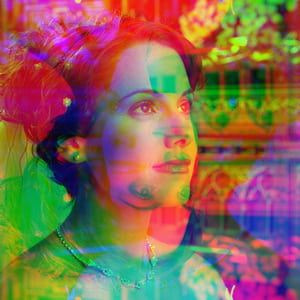
// Flip the red channel vertically and the blue channel horizontally of an image (ensure all bmps are created and freed)
ImageEnView1.Proc.GetRGBChannelAll( bmpR, bmpG, bmpB );
bmpR.Flip( fdVertical );
bmpB.Flip( fdHorizontal );
ImageEnView1.Proc.SetFromRGBChannels( bmpR, bmpG, bmpB );
StretchValues
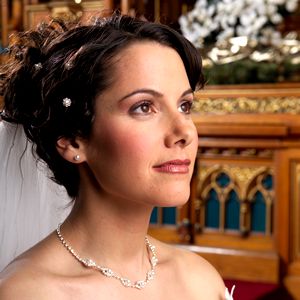
// Trim top and bottom 10% of color rangeImageEnView1.IEBitmap.BlackValue := 25;
ImageEnView1.IEBitmap.WhiteValue := 230;
ImageEnView1.IEBitmap.StretchValues(); // Permanently apply changes
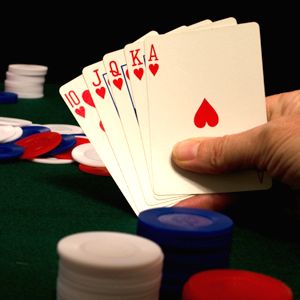
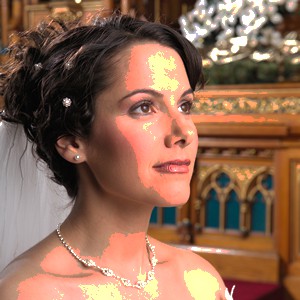
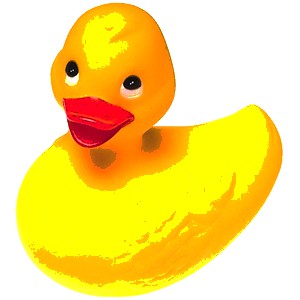
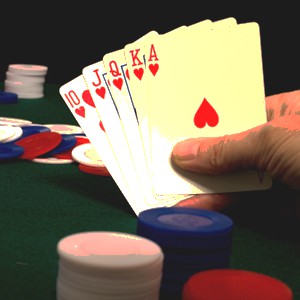
Threshold
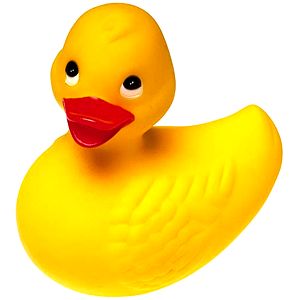
// Change all values less than R/G/B of 64 to blackImageEnView1.Proc.Threshold( CreateRGB(64, 64, 64), CreateRGB(255, 255, 255), CreateRGB(0, 0, 0), CreateRGB(255, 255, 255) );
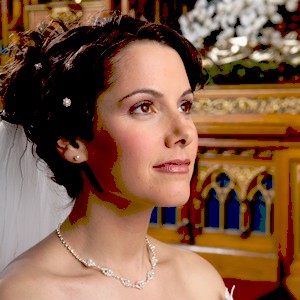
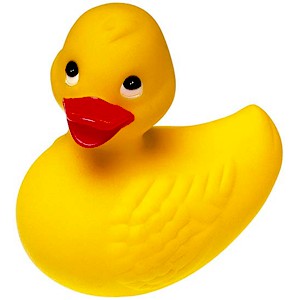
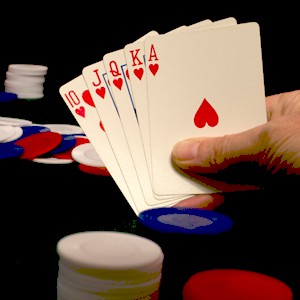
// Change all values greater than R/G/B of 192 to white
ImageEnView1.Proc.Threshold( CreateRGB(0, 0, 0), CreateRGB(192, 192, 192), CreateRGB(0, 0, 0), CreateRGB(255, 255, 255) );
WallisFilter
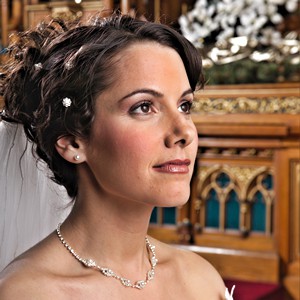
// Apply a Wallis Filter to the imageImageEnView1.Proc.WallisFilter();
WhiteBalance_AutoWhite
// Shift image colors by adjusting the white rangeImageEnView1.Proc.WhiteBalance_AutoWhite();
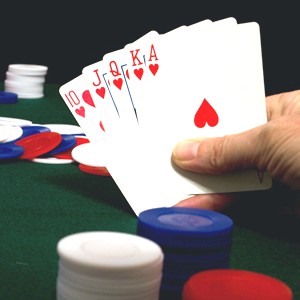
WhiteBalance_Coef
// Decrease red level by 0.8ImageEnView1.Proc.WhiteBalance_Coef( 0.8, 1, 1 );
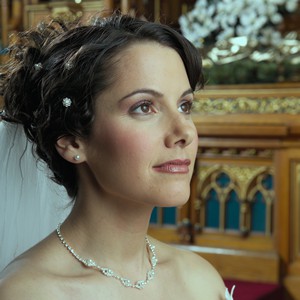
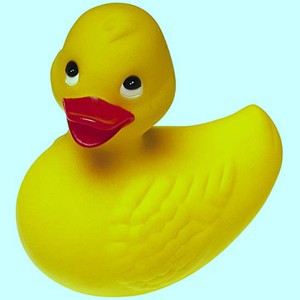
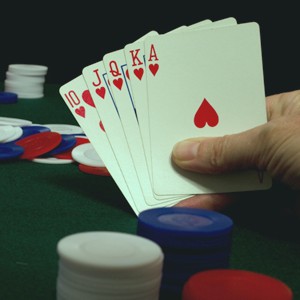
WhiteBalance_GrayWorld
// Adjust image colors by applying the white balance algorithm "Gray World"ImageEnView1.Proc.WhiteBalance_GrayWorld();
WhiteBalance_WhiteAt
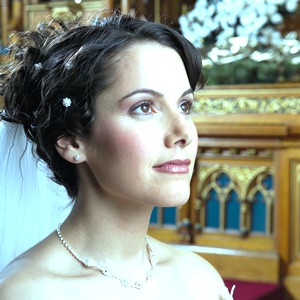
// Shift image colors by adjusting the white range (based on the white of the pixel at the center of the image).ImageEnView1.Proc.WhiteBalance_WhiteAt( ImageEnView1.IEBitmap.Width div 2, ImageEnView1.IEBitmap.Height div 2 );
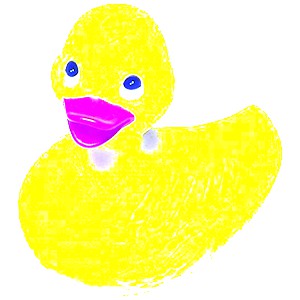
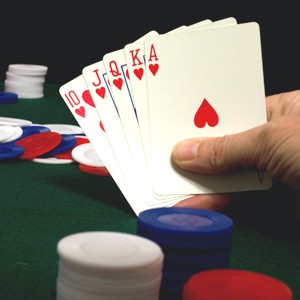
threshold (IEVision)
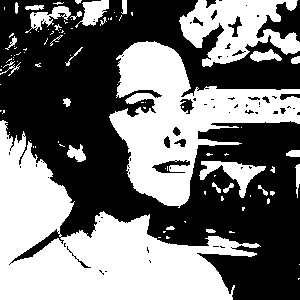
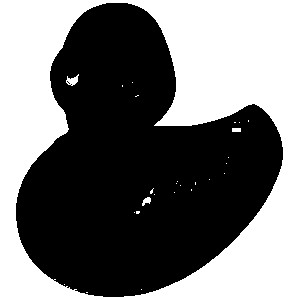
// Apply a fixed-level threshold to each pixel elementImageEnView1.IEBitmap.PixelFormat := ie8g;
ImageEnView1.IEBitmap.GetIEVisionImage().threshold(0, 255, ievTHRESH_BINARY or ievTHRESH_OTSU);
ImageEnView1.Update();
See Also
◼Analysis Methods◼Color Adjustment Methods
◼Color Depth Methods
◼Detection Methods
◼Effects Methods
◼Filter Methods
◼Geometric Methods
◼Painting and Alpha Methods
◼Smoothing Methods
◼Other Methods
◼Selection Methods
◼Interactive Tools