The "Every Method" editing demo allows you to preview 300 editing, analysis and effects methods, and generate sample code.
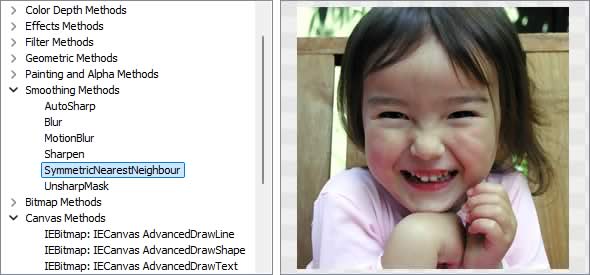
Image Editing Methods
◼Analysis Methods◼Color Adjustment Methods
◼Color Depth Methods
◼Detection Methods
◼Special Detection Methods
◼Document Methods
◼Drawing Methods
◼Effects Methods
◼Filter Methods
◼Geometric Methods
◼Painting and Alpha Methods
◼Smoothing Methods
◼Other Methods
◼Selection Methods
◼Interactive Tools
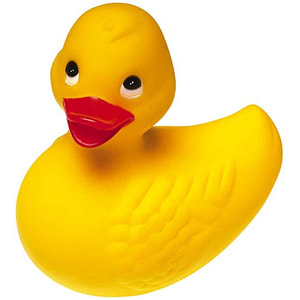
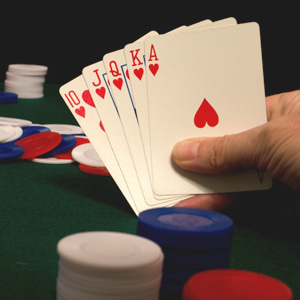
Test Images
ImageEnView1.IO.LoadFromFile( 'D:\ImageTest1.jpg' );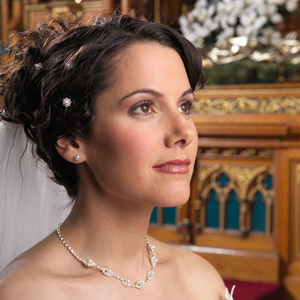
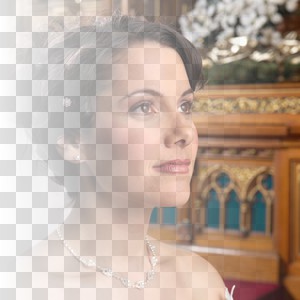
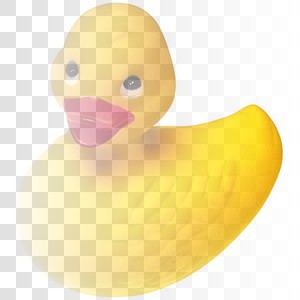
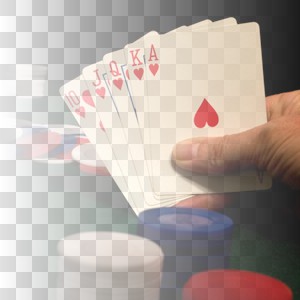
AlphaFill
// Gradient fill the alpha channel with fully transparent on the left to fully opaque on the rightImageEnView1.Proc.AlphaFill( 0, 255, gdHorizontal );
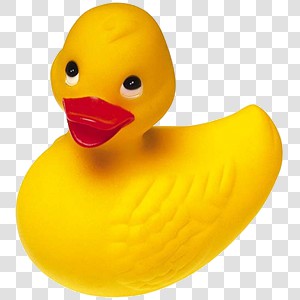
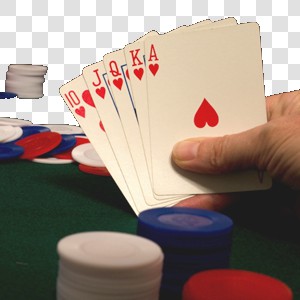
CastAlpha
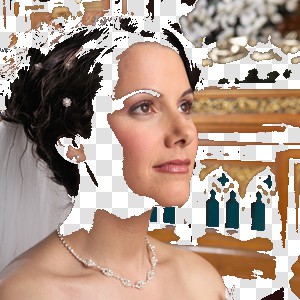
// Flood fill transparency from the top-left of the imageImageEnView1.Proc.CastAlpha( 0, 0, 0, 50 );
CastAlphaRange
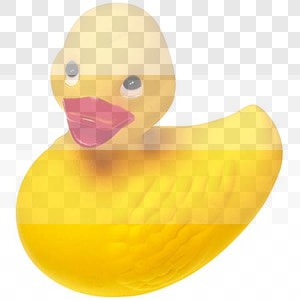
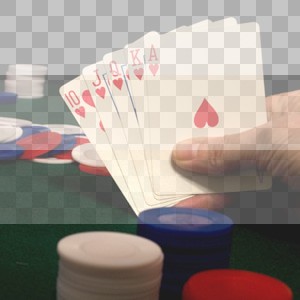
// Reduce number of alpha values to 4 (i.e. 2-bit alpha)alphaCount := 4; // Number of alpha channel values
a := 255 / alphaCount; // Range of each alpha band
ImageEnView1.LockUpdate();
ImageEnView1.IEBitmap.AlphaFill( 0, 255 ); // Add an alpha gradient to the image
for i := alphaCount - 1 downto 0 do
ImageEnView1.Proc.CastAlphaRange( Round( i * a ), Round( (i+1) * a ), Round( (i+1) * a ));
ImageEnView1.UnlockUpdate();

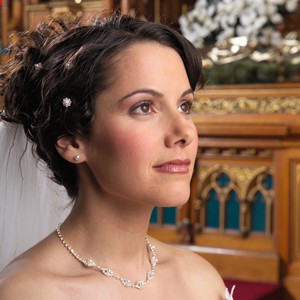
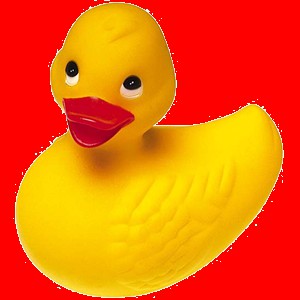
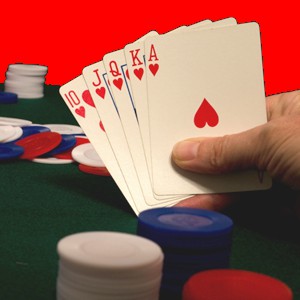
CastColor
// Perform a red flood fill starting at 0,0 (with a tolerance of 10)ImageEnView1.Proc.CastColor( 0, 0, clRed, 10 );
CastColorRange
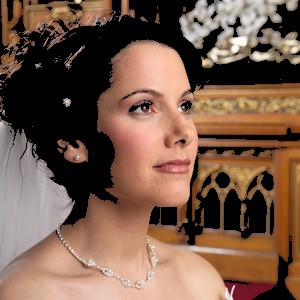
// Change all dark values (from dark gray to black) to blackImageEnView1.Proc.CastColorRange( CreateRGB(0, 0, 0),
CreateRGB(100, 100, 100),
CreateRGB(0, 0, 0));
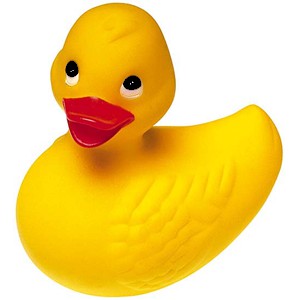
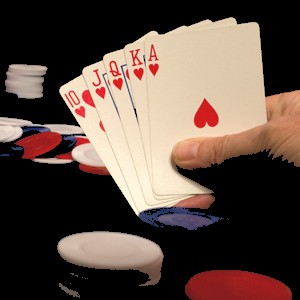
FeatherAlphaEdges
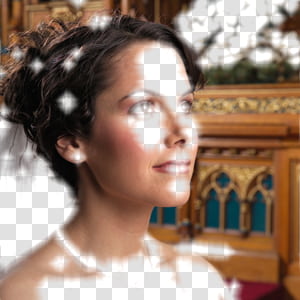
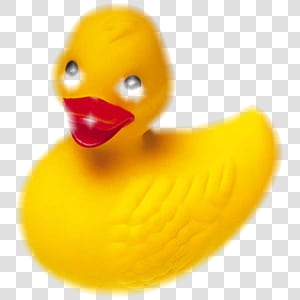
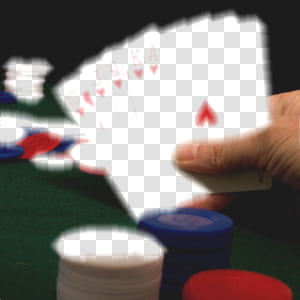
// Make colors similar to white transparent and then feather the alpha edgesImageEnView1.Proc.SetTransparentColors( CreateRGB( 156, 156, 156 ), CreateRGB( 255, 255, 255 ), 0 );
ImageEnView1.Proc.FeatherAlphaEdges( 10 );
Fill
// Fill selection with redImageEnView1.Proc.Fill( clRed );

GradientFill
// Fill selection with a yellow to red vertical gradientImageEnView1.Proc.GradientFill( clYellow, clRed, gdVertical );

PaintMark
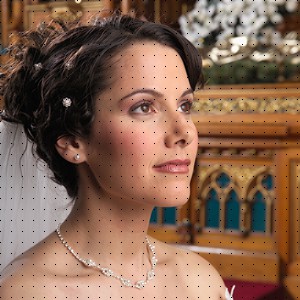
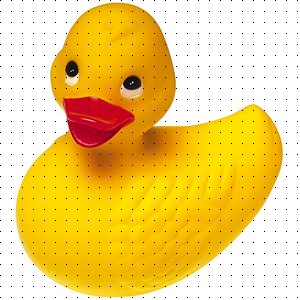
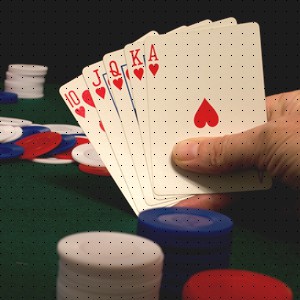
// Draw a black pixel every 10 pixels horizontally and verticallyImageEnView1.Proc.PaintMark( 10, CreateRGB(0, 0, 0) );
inPaint (IEVision)
// Inpaint an area of the image (to fill missing areas of image or erase blemishes)ImageEnView1.IEBitmap.GetIEVisionImage().InPaint( selRect.Width, selRect.Height, ipRect, rangeSize, ievINPAINT_TELEA );
ImageEnView1.Update();

Random
// Fill with pixels of random values (Gaussian distribution)ImageEnView1.Proc.Random();

RemoveChromaKey
// Load Chroma-Key imageImageEnView1.IO.LoadFromFile( 'C:\ChromaKey.jpg' );

// Guess the background color
KeyColorRGB := ImageEnView1.Proc.GuessChromaKeyColor();
// Remove Chromakey from the image (will become transparent)
ImageEnView1.Proc.RemoveChromaKey( KeyColorRGB, 0.21, 30, 2, 0 );

SetTransparentColors
// Make colors similar to white transparentImageEnView1.Proc.SetTransparentColors( CreateRGB(255, 255, 255), 50, 0 );
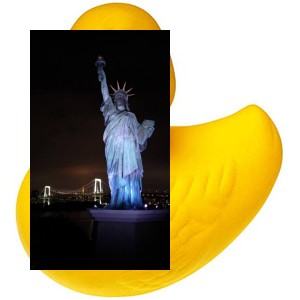
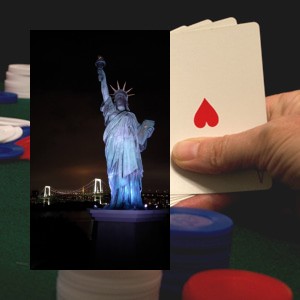
DrawToTIEBitmap
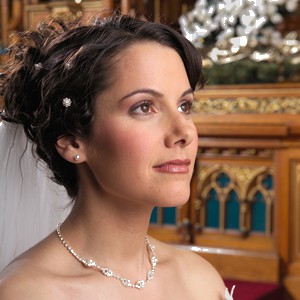
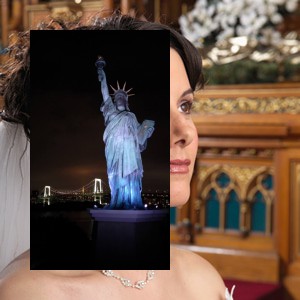
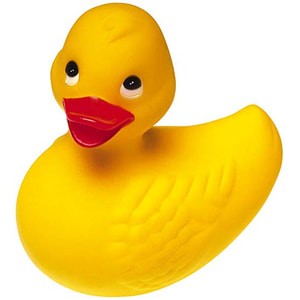
// Draw an image onto the current imagebmp := TIEBitmap.Create( 'D:\Portrait.jpg' );
bmp.Resample( -1, MulDiv( ImageEnView1.IEBitmap.Height, 8, 10 ), rfFastLinear ); // 80% of the height of the image
ImageEnView1.IEBitmap.PixelFormat := ie24RGB;
bmp.DrawToTIEBitmap( ImageEnView1.IEBitmap, ImageEnView1.IEBitmap.Width div 10, ImageEnView1.IEBitmap.Height div 10, 255, ielNormal );
ImageEnView1.Update(); // Show changes in our viewer
bmp.Free();
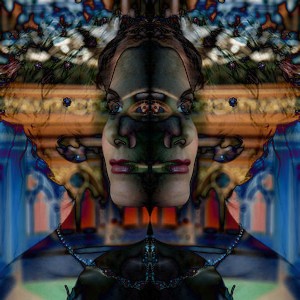
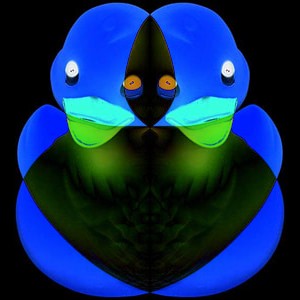
// Draw the image upon a flipped copy of itself using a "Subtract" render operation
bmp := TIEBitmap.Create( ImageEnView1.IEBitmap );
ImageEnView1.Proc.Flip( fdHorizontal );
ImageEnView1.IEBitmap.PixelFormat := ie24RGB;
bmp.DrawToTIEBitmap( ImageEnView1.IEBitmap, 0, 0, 255, ielSub );
ImageEnView1.Update(); // Show changes in our viewer
bmp.Free();
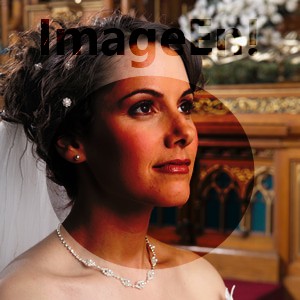
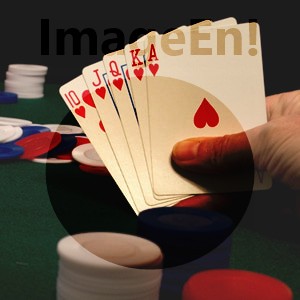
// Draw text and an ellipse onto the alpha channel of a darkened copy of the image, then draw it with alpha onto the image
bmp := TIEBitmap.Create( ImageEnView1.IEBitmap );
bmp.BlackValue := 122;
bmp.WhiteValue := 255;
bmp.StretchValues();
bmp.AlphaChannel.IECanvas.Font.Height := MulDiv( bmp.Height, 23, 100 );
bmp.AlphaChannel.IECanvas.Font.Style := [fsBold];
bmp.AlphaChannel.IECanvas.Font.Color := clBlack;
bmp.AlphaChannel.IECanvas.DrawText( 'ImageEn!', ( bmp.Width - bmp.AlphaChannel.IECanvas.TextWidth( 'ImageEn!' )) div 2, 0 );
bmp.AlphaChannel.IECanvas.Pen.Style := psClear;
bmp.AlphaChannel.IECanvas.Brush.Style := bsSolid;
bmp.AlphaChannel.IECanvas.Brush.Color := clBlack;
bmp.AlphaChannel.IECanvas.Brush.Transparency := 192;
bmp.AlphaChannel.IECanvas.Ellipse( MulDiv( bmp.Width, 15, 100 ), MulDiv( bmp.Height, 25, 100 ), bmp.Width - MulDiv( bmp.Width, 15, 100 ), bmp.Height - MulDiv( bmp.Height, 10, 100 ));
bmp.AlphaChannel.Negative(); // Make the ellipse opaque and the background transparent
bmp.DrawToTIEBitmap( ImageEnView1.IEBitmap, 0, 0 );
ImageEnView1.Update(); // Show changes in our viewer
bmp.Free();
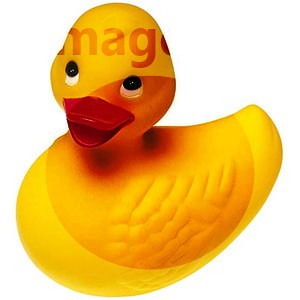
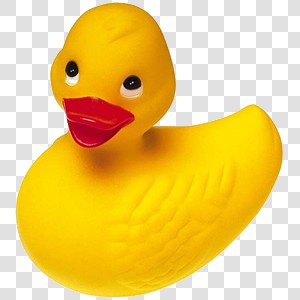
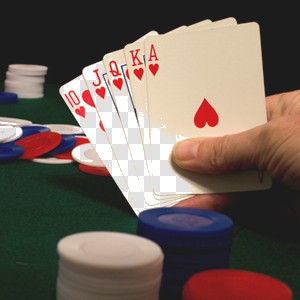
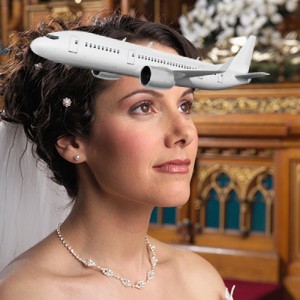
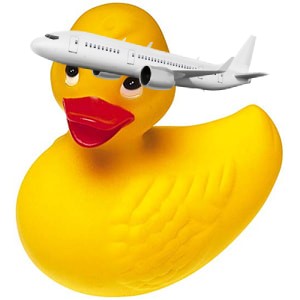
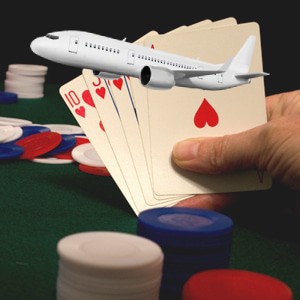
// Draw a transparent PNG onto the image
bmp := TIEBitmap.Create( 'D:\Plane.png' );
bmp.Resample( MulDiv( ImageEnView1.IEBitmap.Width, 8, 10 ), -1, rfFastLinear ); // 80% of the width of the image
ImageEnView1.IEBitmap.PixelFormat := ie24RGB;
bmp.DrawToTIEBitmap( ImageEnView1.IEBitmap, ImageEnView1.IEBitmap.Width div 10, ImageEnView1.IEBitmap.Height div 10, 255, ielNormal );
ImageEnView1.Update(); // Show changes in our viewer
bmp.Free();
RenderToTIEBitmapEx
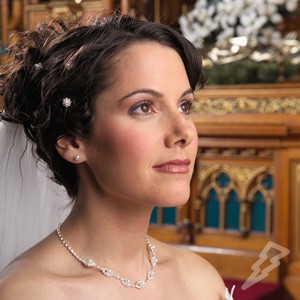
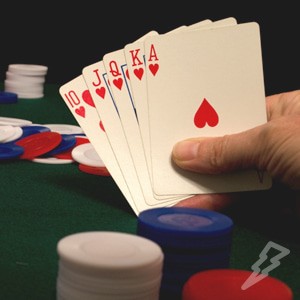
// Add a lightning shape watermark at the bottom-right of the image at 33% opacityImageEnView1.IEBitmap.PixelFormat := ie24RGB;
bmp := TIEBitmap.Create();
bmp.FillWithShape( iesLightningLeft, 50, 50, clWhite, 5, clNone, True, True );
bmp.RenderToTIEBitmapEx( ImageEnView1.IEBitmap,
ImageEnView1.IEBitmap.Width - bmp.Width - 10, ImageEnView1.IEBitmap.Height - bmp.Height - 10, bmp.Width, bmp.Height,
0, 0, bmp.Width, bmp.Height,
True, 255, rfFastLinear, ielNormal,
0.33 );
bmp.Free();
ImageEnView1.Update();
See Also
◼Analysis Methods◼Color Adjustment Methods
◼Color Depth Methods
◼Detection Methods
◼Special Detection Methods
◼Document Methods
◼Drawing Methods
◼Effects Methods
◼Filter Methods
◼Geometric Methods
◼Painting and Alpha Methods
◼Smoothing Methods
◼Other Methods
◼Selection Methods
◼Interactive Tools